How to Add Weather Widget to Your Website Easily Without Any Coding
Wondering how to add weather widget? In fact, it is so much easier than it sounds, and far more impactful than many site owners realize. In this guide, you will discover the most practical and beginner-friendly ways to display real-time weather data, and common mistakes people make to avoid! Let’s find out!
How to add a weather widget to a website?
What is a weather widget on a website?
A weather widget on a website is a small embedded component that displays weather information for a specific location.
It can show current temperature, weather conditions, hourly updates, or multi-day forecasts.

A weather widget is a small component that displays weather information
Most weather widgets automatically pull data from trusted weather sources. This means the information updates in real time without manual input.
From a website structure perspective, a weather widget is a type of website widget. It works as a standalone block that can be added to pages, sidebars, or footers.
Weather widgets are usually added using embed code, plugins, or iframe scripts.
Learning how to add weather widget means you do not need advanced coding skills. This makes them suitable for beginners and non-technical website owners.
Why Your Website Need A Weather Widget?
A weather widget can bring huge advantages to your sites, these include:
-
Increase user engagement & retention
Real-time weather data encourages visitors to return to the site to check for updates, which increases overall traffic.
-
Enhanced user experience
Providing relevant, actionable information helps visitors plan their activities, which increases trust, especially for travel, tourism, and logistics websites.
-
Improved credibility & professionalism
Accurate, up-to-date weather forecasts make a website appear more reliable and professional.
-
Customization options
Widgets can be styled to match the site’s branding, including adjustments to layout, colors, and the specific location of the data.
-
Dynamic content
Rather than relying solely on static, unchanging content, weather widgets add a dynamic, constantly updating element to the page.
-
Industry-specific benefits
For businesses in logistics, agriculture, or travel, showing weather forecasts can reduce operational friction and provide critical information to clients.

A weather widget can add numerous values to your site
How to Add Weather Widget to Your Website
Once you understand the value of weather widgets, the next step is learning how to add one to your site.
The process depends on your website platform. Below are clear, practical methods for the most common website types.
HTML/Generic Websites
For custom-built or static websites, adding a weather widget is straightforward, and the good news is that you do not need advanced coding skills.
-
Choose a reliable weather widget provider
Remember to pick up a trustworthy and suitable weather widget provider. This seems unnecessary, but it really matters, especially when it comes to your site’s performance.
-
Customize the widget
Many providers offer visual editors where you can customize the widget. You can select the location, temperature unit, language, and layout style.
Find out the best weather widget for a website here!
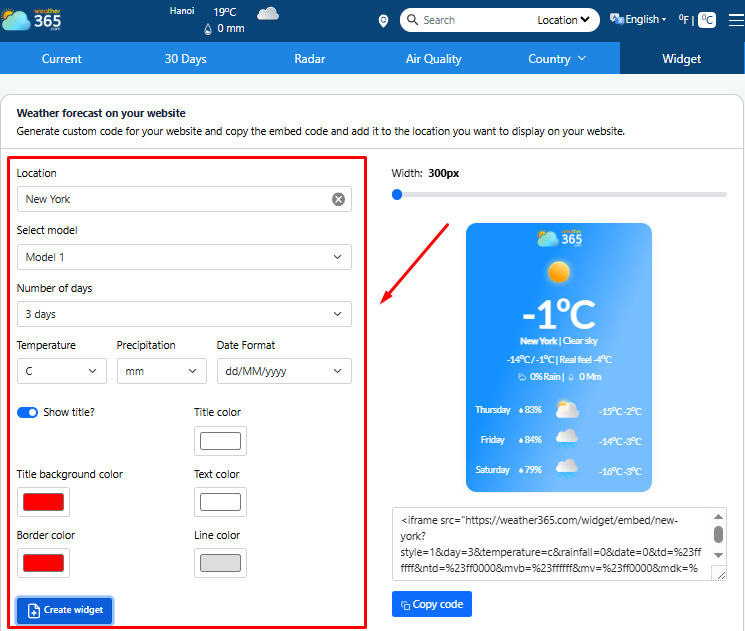
Weather365 offers an easily customizable weather widget
-
Generate the widget code
This is usually an iframe or JavaScript snippet. The provider creates it automatically based on your settings.
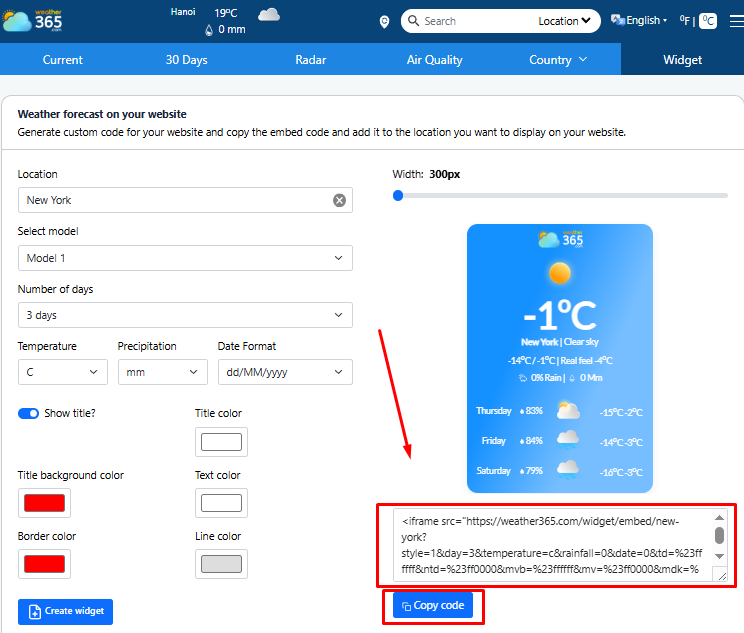
Copy the code easily with Weather365
-
Paste the code
Open your website’s HTML file or editor. Paste the widget code where you want it to appear. Common positions include the sidebar, footer, or within a content section.
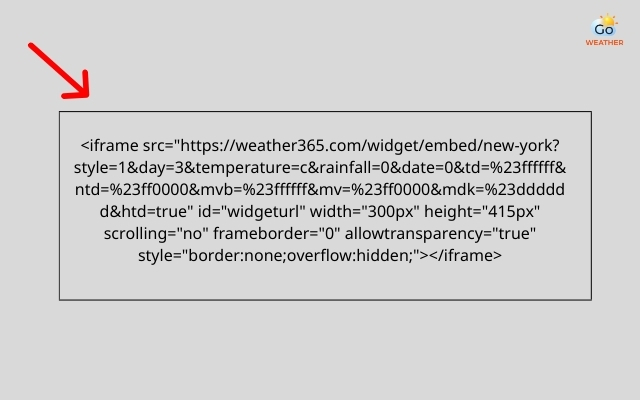
Paste the code into where you want it to appear
After saving the file, refresh your website. The weather widget should display real-time data instantly.
If it does not appear, double-check the placement and ensure the code is not inside a restricted block.
Learn the details on the HTML code for weather widget!
Wordpress Websites
How to add weather widget to WordPress?
Don’t get nervous, WordPress offers the easiest way to add weather widgets, as plugins handle most of the work.
-
Add new Plugin
Start by logging into your WordPress dashboard. Go to Plugins → Add New
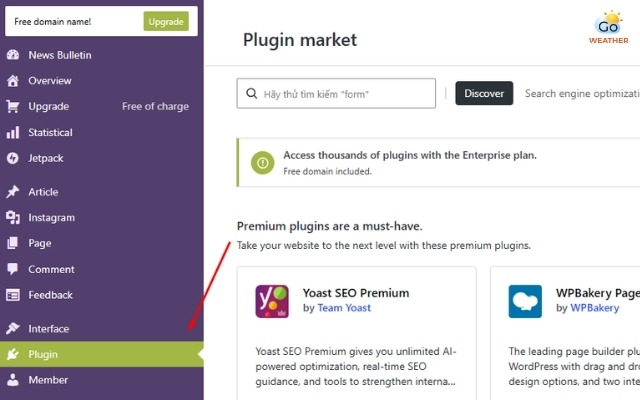
Choose “Plugin” on the dashboard
-
Find a weather widget plugin
In the search bar at the top of the site, search for keywords like “Location Weather” or “Weather Widget”.
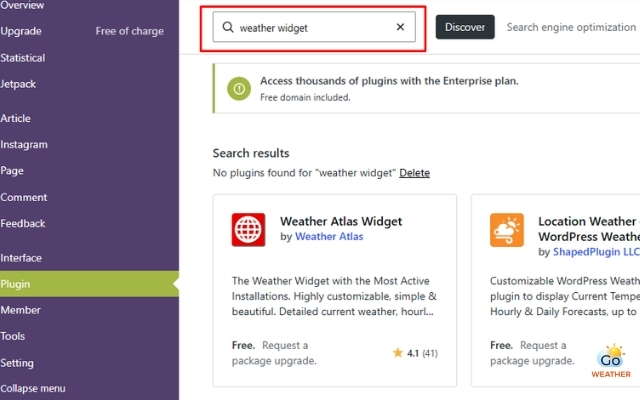
Search for the weather plugin in the search bar
-
Activate the plugin
Choose a plugin with good reviews and recent updates. Install and activate it.
-
Customize the plugin
Open the plugin settings. Set the location, units, display style, and update frequency. Most plugins offer preview options so you can check the widget beforehand.
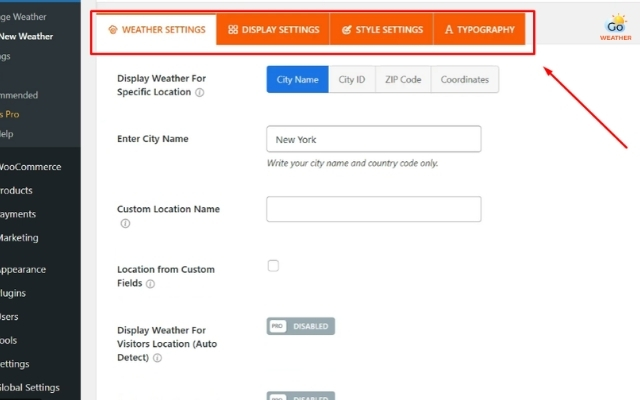
Configure the plugin to match your needs
-
Add the weather widget
Go to Appearance → Widgets or use the block editor. Add the weather widget to your desired area. This could be a sidebar, footer, or homepage section.
Save your changes and check the live site. The widget should now display accurate weather data without manual updates.
Still confusing? Get illuminated here!
Google Sites
Google Sites does not support plugins like WordPress, but don’t worry! You can still add a weather widget using embed code. Follow these steps to get the work done!
-
Find a weather widget provider
First, create a weather widget using an external provider.
-
Customize the widget
With the Weather365 weather widget, you can customize location, temperature units, precipitation, as well as date format, title color, or even title background color.
Customize the best weather widget with Weather365
-
Copy the code
Copy the generated embed code. Make sure the provider supports iframe embedding.
Weather365 supports iframe embedding
-
Insert the code
Open your Google Sites editor. Use the “embed” option in Google Sites to insert the code.
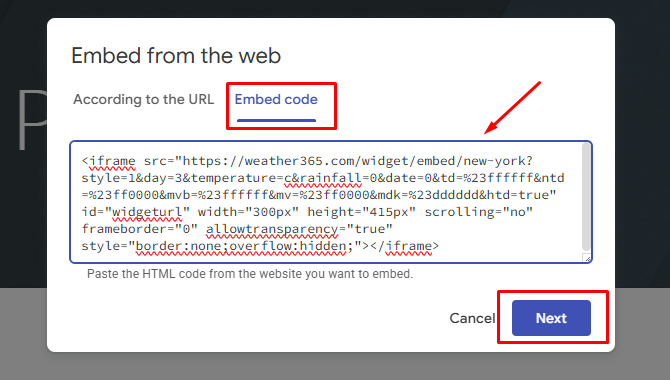
Paste the code into the embed code block
-
Adjust the widget
Adjust the widget layout to fit the page. Then publish your site.
Choose a layout that fits your page
Once published, the weather widget will appear and update automatically. This method is simple and works well for informational or internal websites.
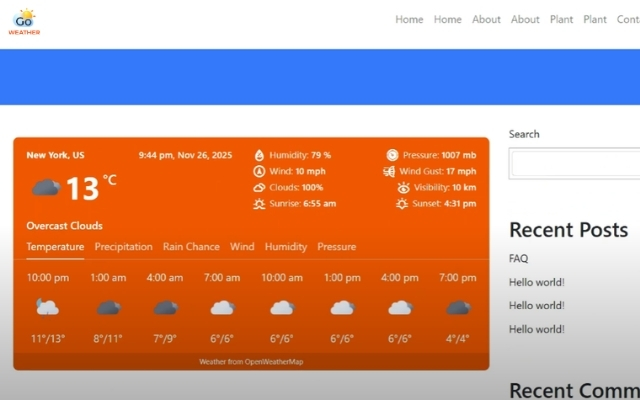
The weather widget will appear and update automatically
No matter the platform, the core steps are the same:
Choose a provider -> Customize the widget -> Embed it correctly ->
With proper setup, adding weather data to your website is fast and effective.
Common Mistakes When Adding Weather Widget
Successfully learn how to add weather widget?
Hold on! Adding a weather widget looks simple, but small mistakes can reduce its value. Below are the 10 most common issues website owners face. Check it out!
-
Adding too many widgets to a single page: Using multiple weather widgets on one page creates clutter. It also confuses users.
-
Selecting widgets that don’t match your brand or audience: Some widgets look outdated or too flashy. Others do not fit your audience.
-
Overlooking mobile-friendly design: Many users browse on mobile devices. Some widgets do not scale well.
-
Custom styles that cause widget display errors: Heavy CSS changes can break widget layout or functions.
-
Placing widget code in the incorrect content block: Widgets may not load if placed in visual editors or restricted blocks.
-
Installing widgets that hurt page speed: Some widgets load large scripts or external resources.
-
Skipping brand customization for widgets: Default settings may not suit your website style or users.
-
Forgetting about accessibility standards: Low contrast or small text makes widgets hard to read.
-
Not measuring or analyzing widget performance: Many site owners never track widget impact.
-
Using distracting widgets: Animations or good effects can pull attention from the main content.
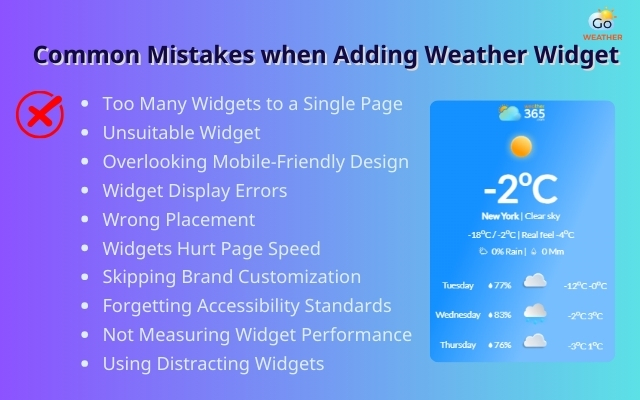
Common mistakes to avoid when adding a weather widget
Did you make any mistakes? Don’t worry, we have a comprehensive guide on how to fix it here!
Final Thought
How to add weather widget features to your website is simple yet powerful way to improve user experience and content value. With the right setup and placement, weather widgets provide real-time information without any complexity.
FAQs
-
How do I change the weather widget location?
Most weather widgets allow you to change the location through their settings panel or configuration code.
You simply update the city name, ZIP code, or coordinates, then save the changes. The widget will refresh automatically with weather data for the new location.
-
Can I use multiple widgets on the same site?
Yes, you can use multiple widgets on one website, including weather widgets. However, each widget adds scripts and resources.
To avoid slow load times or cluttered design, place widgets only where they add real value and limit the total number per page.
Learn how to improve website loading speed with widget here!
-
Are widgets secure?
Widgets are generally secure if they come from reputable providers. Reliable widget services use updated scripts and trusted data sources.
To stay safe, avoid unknown providers, keep plugins updated, and never embed widget code from unverified websites.
![10 Health & Safety Precautions During Rainy Season [Be Careful]](https://admin.goweatherforecast.com/images/1732692097.png)




0 Comments
Leave a Comment
Your email address will not be published. Required fields are marked *