Add Widget to Website: Most Common Mistakes and How to Fix Them
- How To Add Widget To Website?
- 10 Common Mistakes When Add Widget to Website
- Adding Too Many Widgets to a Single Page
- Selecting Widgets That Don’t Match Your Brand or Audience
- Overlooking Mobile-Friendly Design
- Custom Styles That Cause Widget Display Errors
- Placing Widget Code in the Incorrect Content Block
- Installing Widgets That Hurt Page Speed
- Skipping Brand Customization for Widgets
- Forgetting About Accessibility Standards
- Not Measuring or Analyzing Widget Performance
- Using Distracting Widgets
- Best Practice to Add Widget to Website
- Applications of Widget To Website
- Final Thought
Adding widgets can instantly improve your website’s functionality, but when brands add widgets to their website without a clear strategy, the result is often slower load times, messy layouts, and poor user experience. In this guide, you’ll learn how to add widget to website correctly, the 10 most common mistakes, and practical fixes to avoid them. Let’s dive in!

Common mistakes when adding widget to website
A widget on a website is a small embeddable feature (often added via a plugin or a snippet of code) that adds specific functionality to a page. Examples include a weather widget, a live chat widget, or a map widget. See more: What is a Widget on a Website: Types, Examples, and Benefits
How To Add Widget To Website?
Before talking about mistakes, let’s quickly review the correct way to add widget to website.
This ensures the widget works properly and does not break your layout or performance.
-
Decide what widget you want to add
Start by identifying your goal. Are you trying to:
-
Show real-time data (weather widget, clock, map,...)?
-
Increase engagement with chat or social feeds?
-
Collect leads or reviews?
-
….
Only add widgets that support your page’s main purpose.

Choose a suitable widget for your site
-
Choose a widget provider or plugin
Widgets are usually created by third-party services or plugins. Select a trusted provider or plugin that fits your platform (WordPress, custom HTML, CMS, etc.).
Popular options include: Elfsight, Zendesk, Social media plugins, Weather widget providers (Weather365).
If you’re adding a weather feature, check guides like Weather widget on website to pick the right one.

Select a trusted provider or plugin that fits your platform
-
Obtain the widget code
Most widgets give you a small piece of code to embed on your site. This is usually a block of HTML, JavaScript, or both.
To get the widget code, log in to your widget provider and go to the Install, Embed, or Integration section. Copy the provided HTML or JavaScript code.
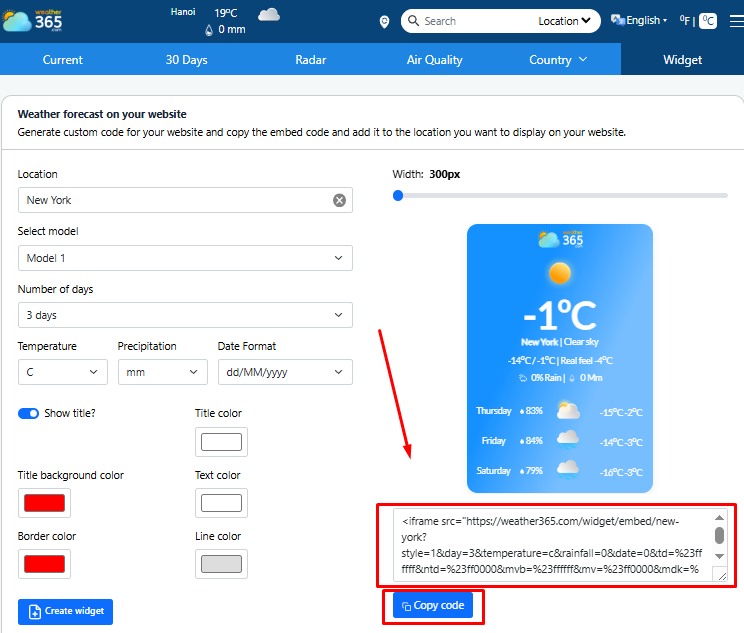
For example, if you want to use the weather widget from Weather365, here’s how to get the code:
-
Go to Weather365.com
-
Go to the Widget page
-
Customize the widget: location, model, days, temperature units,...
-
Create the widget
-
Copy the code and paste to your site.
More: Customizable weather widget: Top Widgets to Boost User Engagement
-
Access your website’s code
Next, you need to access your website’s backend, where you can edit code. This depends on how your site is built:
-
In WordPress, you might add code through a widget area or a theme editor.
Learn more: WordPress weather widget
-
In custom HTML sites, you’ll open the HTML file where the widget should appear.
Learn more: HTML code for weather widget
-
Some builders (like Wix or Squarespace) let you insert custom code blocks.
Make sure you’re editing the correct page or template.
-
Paste the code correctly
To paste the code correctly, you need to decide the exact position you want to place the widget:
-
Site-wide widgets (chat, notifications):
Paste the code right before the closing tag.
-
Specific placement widgets:
Paste the code into the exact section or container where it should appear.
It is worth noting that: Never paste scripts into visual or text-only editors.
See more: How to Add Weather Widget to Your Website Easily Without Any Coding
10 Common Mistakes When Add Widget to Website
Adding widgets to a website seems to be easy, yet there are several mistakes site owners usually make.
Below are the 10 most common mistakes brands make when they add widget to website. Let’s find out what they are and how to fix them!
Adding Too Many Widgets to a Single Page
Many websites try to add multiple widgets at once, hoping to increase engagement.
In reality, too many widgets can cause trouble because widgets compete for attention.
Besides, this not only overwhelms users, making the page feel cluttered, but also increases the number of scripts loading on the page.
How to fix:
-
Keep only widgets that support your page’s mail goal
-
Remove duplicate or low-engagement widgets
-
Limit widgets per page to avoid visual clutter

Too many widgets compete for attention
Selecting Widgets That Don’t Match Your Brand or Audience
Not every widget fits every website.
For instance, a flashy or playful widget may feel out of place on a professional or informational site.
Likewise, a widget that does not solve a real user need adds no value.
How to fix:
-
Select widgets that match your audience’s needs
-
Ensure the widget aligns with your brand tone and design
-
Ask whether the widget adds real value to users
Learn helpful tips to choose the right widget for your website here!
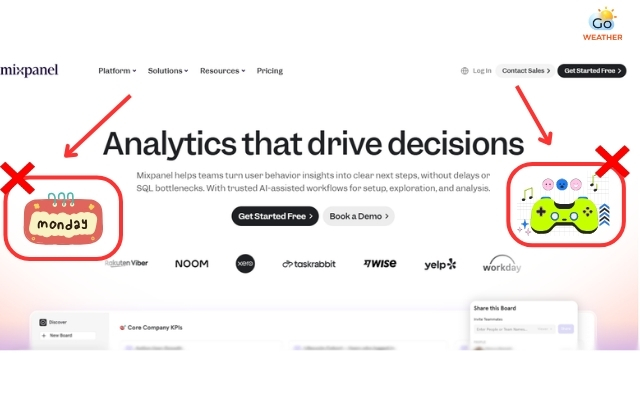
Unsuitable widgets may make your website look weird
Overlooking Mobile-Friendly Design
Many widgets look fine on the desktop, but fail on the mobile. They may overlap content, load incorrectly, or be hard to close on small screens.
Since most users browse on mobile, this is a critical issue you should take seriously.
How to fix:
-
Test widget on mobile and tablet devices
-
Use responsive widgets whenever possible
-
Hide or simplify widgets on smaller screens
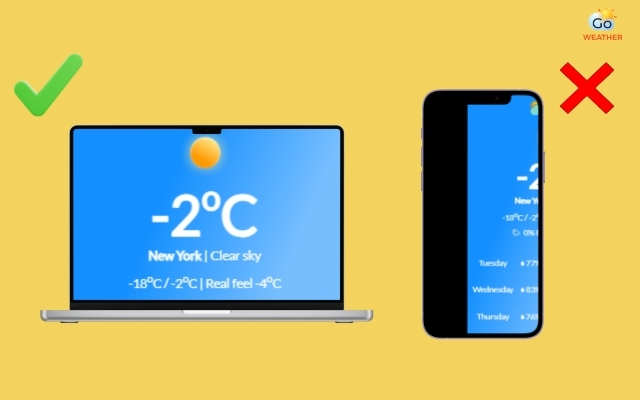
Widgets look fine on the laptop but fail on the mobile
Custom Styles That Cause Widget Display Errors
Custom CSS is often used to adjust widget appearance. However, aggressive styling can override the widget’s core structure.
This may cause alignment issues, broken layouts, or missing functions.
How to fix:
-
Test custom CSS before publishing
-
Avoid overriding core widget classes
-
Use scoped or isolated styles
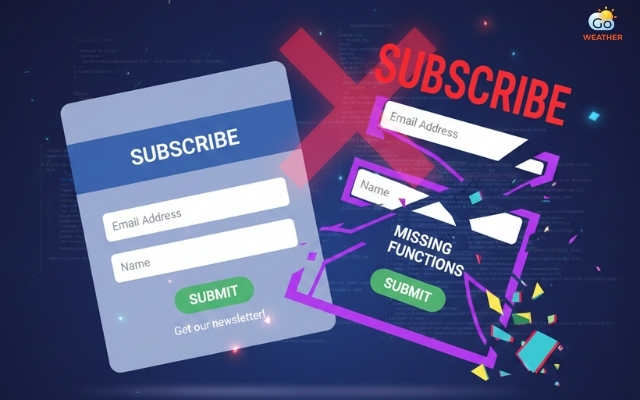
Aggressive styling can override the widget’s core structure
Placing Widget Code in the Incorrect Content Block
Widgets usually require HTML or JavaScript to run.
A common mistake is pasting this code into visual or text editors that do not support scripts. As a result, the widget fails to load.
How to fix:
-
Insert widget code into HTML or Custom Code blocks
-
Do not paste scripts into text or visual editors
-
Follow platform-specific embedding guidelines
Installing Widgets That Hurt Page Speed
Some widgets load large scripts, images, or external resources. When added without optimization, they can slow down page loading.
Since speed is a key factor for both user experience and SEO, you should fix this problem as soon as possible.
How to fix:
-
Choose lightweight, well-optimized widgets
-
Enable lazy loading if available
-
Check page speed after installation

Too heavy widgets can hurt the website’s loading speed
Skipping Brand Customization for Widgets
Default widget styles often do not match your website’s colors, fonts, or spacing.
This creates a visual gap between the widget and the rest of the page.
How to fix:
-
Adjust colors, fonts, and spacing to match your site
-
Avoid default widget styles
-
Keep the widget visually consistent with your UI
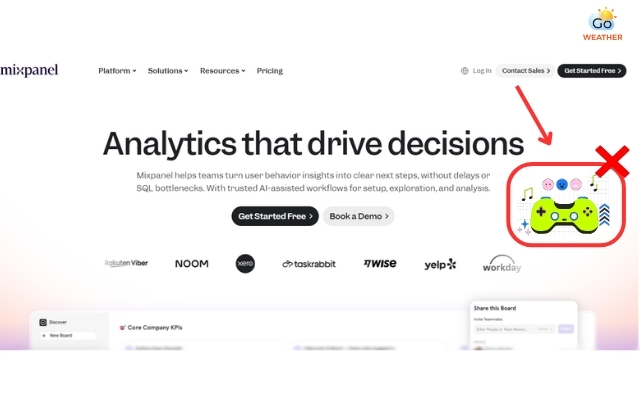
Widget styles do not match your website’s colors
Forgetting About Accessibility Standards
Accessibility is often ignored when adding widgets.
Some widgets lack keyboard navigation, proper labels, or sufficient color contrast, which limits usability for many users.
How to fix:
-
Add alt text and accessible labels
-
Ensure sufficient color contrast
-
Make widgets usable with keyboard navigation
Not Measuring or Analyzing Widget Performance
After you add widget to website, many site owners never check how it performs.
Without data, it is impossible to know whether the widget helps or hurts your goals.
How to fix:
-
Track widget interactions with analytics tools
-
Monitor engagement and conversion impact
-
Remove or improve underperforming widgets

Regular track widget interactions with analytics tools
Using Distracting Widgets
Auto-playing, flashing, or aggressive pop-up widgets can annoy users.
If a widget interrupts the browsing experience, users may leave immediately.
How to fix:
-
Avoid auto-popups that interrupt users
-
Use smart triggers like scroll or exit intent
-
Always provide an easy close option

Distracting widgets interrupt the browsing experience
Best Practice to Add Widget to Website
Adding a widget to your website can boost engagement, provide useful features, and help achieve your business goals.
But to get the best result, you need more than just pasting code.
Below are proven best practices that ensure your widgets work smoothly:
-
Embed Responsively & Ensure Accessibility
-
Optimize Size & Performance
-
Follow Usage Patterns from Other Widget Practices
-
Use Secure & Standard Embed Methods
-
Match Widget With Website Style
-
Limit Third-Party Widgets
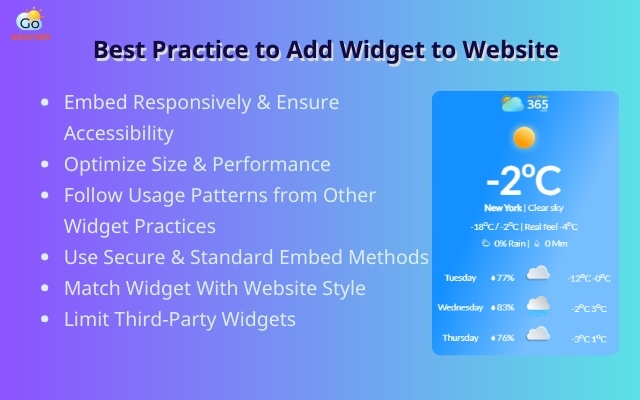
Practices to make sure your widgets work smoothly
Applications of Widget To Website
When chosen and placed correctly, widgets can significantly improve both user experience and business results.
Most common applications of widgets on websites include:
-
Instant information delivery
-
Lead generation & conversion
-
User engagement & interaction
-
Dynamic content display
-
E-commerce support widgets
-
Data visualization & kpi tracking
-
Industry-specific application

Widgets can improve both user experience and business results
Final Thought
When you add widget to website the right way, the widget becomes a powerful tool for engagement and functionality. The key is to choose relevant widgets, embed them properly, and continuously monitor performance. Avoid these common mistakes, and your widgets will enhance, not hurt, your website experience.
FAQs
-
Does a widget slow down a website?
Yes, a widget can slow down a website if it loads heavy scripts or too many external resources.
However, well-optimized widgets that load asynchronously usually have little to no noticeable impact on page speed.
Discover how to improve website loading speed here!
-
How to make a URL widget?
A URL widget is created by embedding an external webpage link into a widget container, often using an iframe or a widget builder. You simply provide the target URL, save the settings, and the content is displayed directly inside the widget area.
-
Can I make a webpage a widget?
Yes, you can turn a webpage into a widget if that page allows embedding. The webpage is loaded inside a widget frame, making it function like a standalone widget on your site.
![10 Health & Safety Precautions During Rainy Season [Be Careful]](https://admin.goweatherforecast.com/images/1732692097.png)




0 Comments
Leave a Comment
Your email address will not be published. Required fields are marked *