Customizable weather widget: Top Widgets to Boost User Engagement
Customizable weather widget options make it easy to show useful weather updates right on your website. Have you ever wanted a weather widget that matches your design and shows the right location automatically? In this post, we’ll help you explore the top customizable weather widgets and what makes each one worth considering.
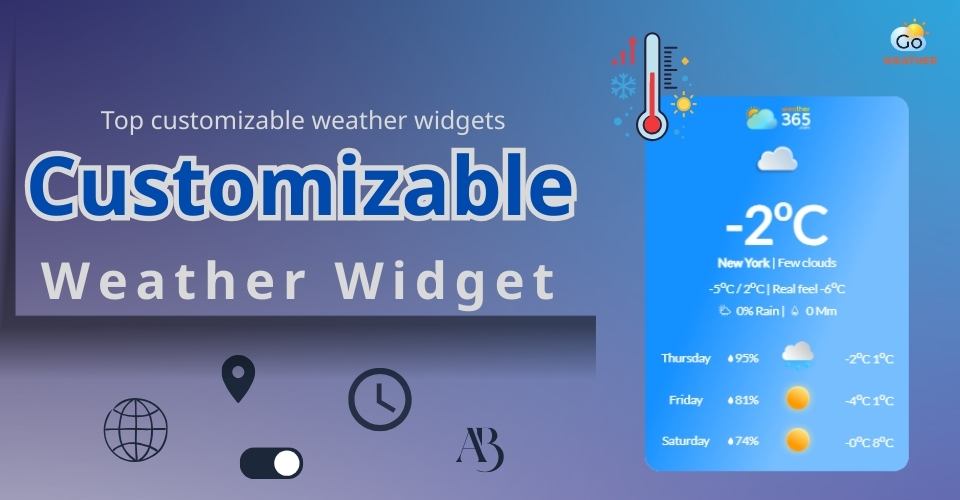
Top customizable weather widgets
Why Your Website Needs A Customizable Weather Widget?
A basic weather widget shows temperature and conditions.
A customizable weather widget, on the other hand, adapts to both your users and your website design.
Let’s see why it makes a real difference:
-
Improve user experience based on context
The weather directly affects user behavior.
Travel blogs, event websites, outdoor services, fitness platforms, or even local businesses all benefit when visitors instantly see relevant weather information.
With a customizable weather widget, you can:
-
Automatically detect user location
-
Show local forecasts without extra clicks
-
Display only the most relevant weather data
This small feature can make your website feel more “alive” and personalized.
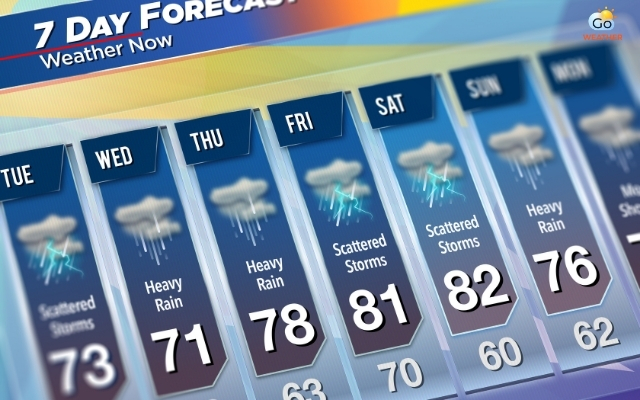
Customizable weather widget shows local forecasts without extra clicks
-
Maintain visual consistency with your website design
One major problem with default widgets is that they often look out of place and unmatch with your website design.
A customizable weather widget allows you to adjust
-
Colors and transparency
-
Font styles and sizes
-
Icon styles (animated or static)
-
Light or dark themes
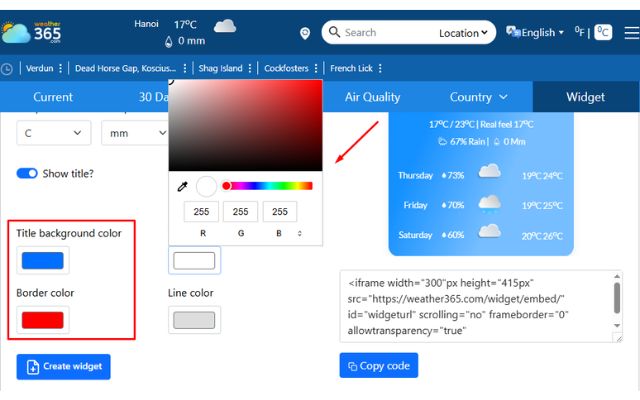
Easily customize the weather widget color with Weather365
-
Suitable for different types of websites
No matter what kind of website you run, a customizable weather widget can be tailored to fit:
-
Blogs and news sites
-
Travel and tourism websites
-
Real estate platforms
-
Event and festival pages
-
Personal portfolios or dashboards
-
Naturally increase time on site
Interactive widgets encourage users to stay longer. When visitors can:
-
Change locations
-
Switch temperature units
-
View hourly or daily forecasts
They’re more likely to engage with your site instead of bouncing away. Over time, this helps improve overall site performance and user retention.
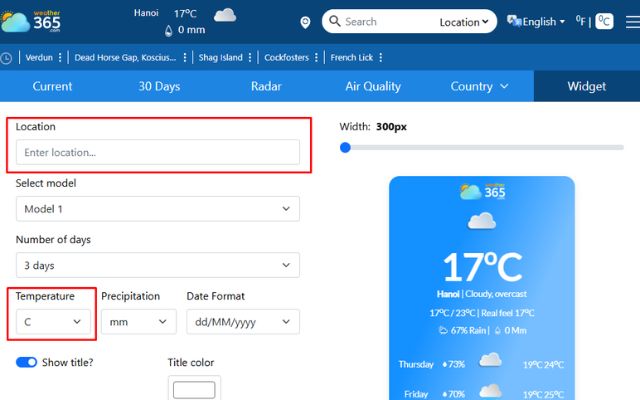
Customize the location and temperature unit
Before choosing a provider, it helps to understand what is a widget on a website: a small embedded element that adds a specific function (like weather, chat, booking) without building everything from scratch.
Top Customizable Weather Widgets For Websites
Choosing the right customizable weather widget depends on how much flexibility you need in terms of design, data accuracy, and user interaction.
Some tools focus on visual customization, while others prioritize clear, reliable forecasts.
Below are five widely used options, each suited to different website goals and audiences.
-
Elfsight
Elfsight is a popular choice for website owners who want an easy-to-use solution without dealing with complex technical settings.
Its main advantage lies in the visual editor, which allows you to customize the widget’s appearance in real time and see changes instantly.
Some key strengths of Elfsight are
-
Simple, no code setup
-
Automatic/manual location settings
-
Easy temperature unit switching (Celsius/Fahrenheit)
-
Custom colors, fonts, and layouts
Elfsight works well for blogs, small business websites, and portfolios where design consistency matters but deep data control is not essential.
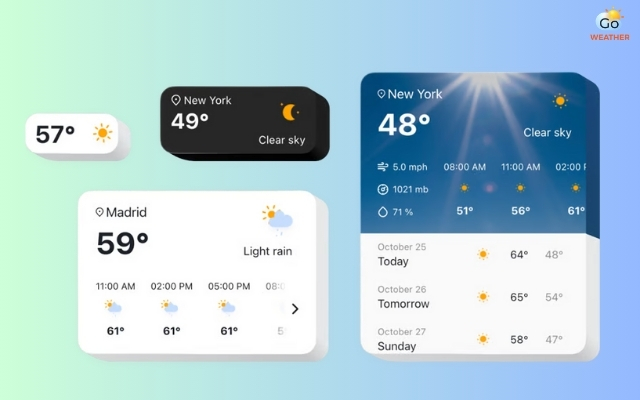
Elfsight offfers easy-to-use solution for weather widget
-
Weather365
Among the available options, Weather365 stands out as a strong choice for websites that value clarity, stability, and dependable weather information. Rather than focusing heavily on decorative elements, Weather365 emphasizes readable layouts and accurate forecasts, making it especially suitable for content-driven websites.
What makes Weather365 effective and different from other providers is:
-
Detailed daily and multi-day forecasts
-
Clear controls for changing temperature units
-
Stable location configuration for specific cities or regions
-
Clean layouts that are easy to read on all devices
From a design perspective, Weather365 keeps customization practical and purposeful. The layouts are clean, responsive, and optimized for both desktop and mobile viewing.
This makes it an excellent customizable weather widget for news sites, travel blogs, and informational platforms.
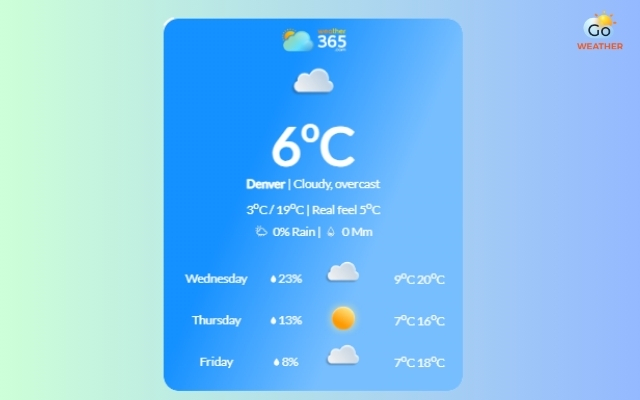
Weather365 is the best choice for content-driven websites
-
Common Ninja
Common Ninja offers a modular widget system that appeals to designers and marketers who want more layout freedom. Notable features include:
-
Adjustable widget size and spacing
-
Custom styling options for fonts and colors
-
Easy integration with modern website builders
It’s a good option if you want to resize a weather widget or adapt it to different page sections without touching code.
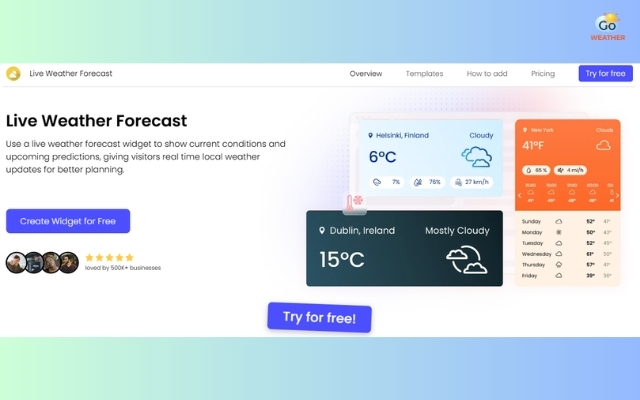
CommonNinja provides adjustable widget size and spacing
-
Weatherwidget.org
Weatherwidget.org focuses on speed and simplicity. It’s often chosen for quick deployments or lightweight websites. Key benefits of Weatherwidget include:
-
Fast setup process
-
Fixed but clean design styles
-
Low impact on page loading speed
Customization options are limited, but it works well if you just need a basic, functional weather display that doesn’t overwhelm your layout.
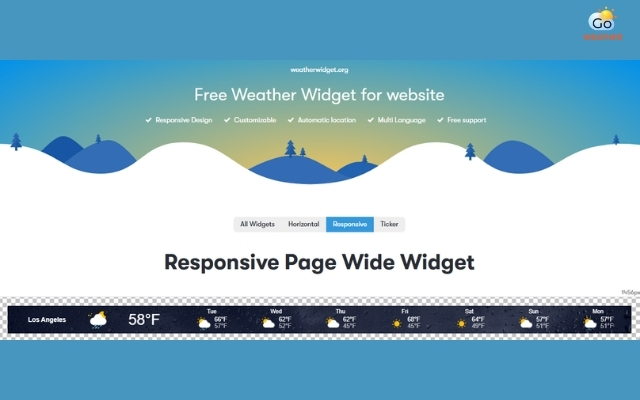
Weatherwidget is often a choice for lightweight websites
-
Tomorrow.io
Tomorrow.io is a more advanced solution intended for professional and data-driven use cases.
It provides highly accurate forecasts and supports deep customization through APIs, allowing businesses to integrate weather data directly into their systems.
Its main advantages are:
-
Highly accurate forecasts
-
API-based customization
-
Support for advanced weather parameters
This platform is best suited for professional use cases such as logistics, outdoor services, or data-driven applications where weather insights play a critical role.
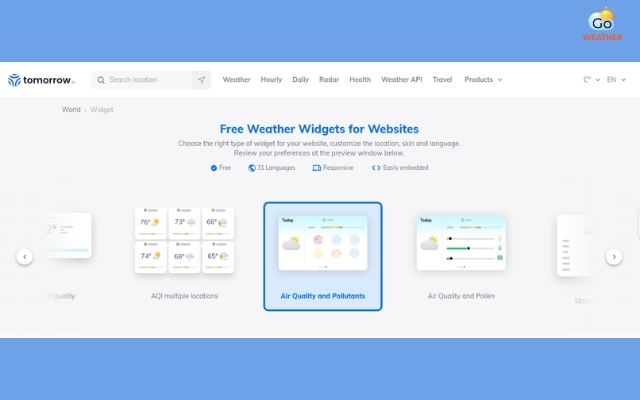
Tomorrow.io provides highly accurate weather forecasts
Steps To Customize Weather Widget
Customizing a weather widget is not just changing colors or selecting a city.
A well-configured, customizable weather widget should match your website’s purpose, adapt to users’ needs, and remain clear and readable across devices.
Below is a step-by-step approach to help you customize a weather widget effectively and professionally.
If you need a more detailed walkthrough, you can check your internal guide on how to add a weather widget.
Select a weather widget provider
The first step is choosing a weather widget provider that aligns with your website goals.
Some platforms focus on visual design and ease of use, while others prioritize forecast accuracy or advanced configuration.
Before making a decision, consider:
-
Whether you need a no-code solution or developer-friendly options
-
The level of customization required for layout and content
-
Compatibility with your website platform (WordPress, Ghost, custom HTML, etc.)
Selecting the right provider from the start ensures you won’t be limited later when adjusting design or functionality.
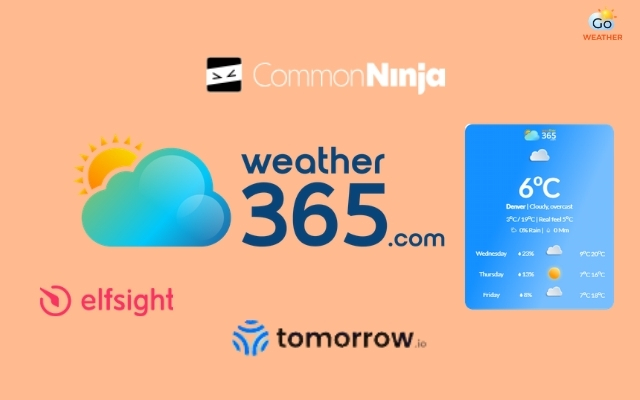
Choosing a weather widget provider that aligns with your website goals
Configure settings
Once you access the widget’s settings panel, this is where most of the core customization happens.
These options determine how relevant and readable the weather information will be for your audience.
Now configuring settings of the widget to adapt to your needs:
-
Location: Set a fixed city or enable automatic detection based on the user's IP.
-
Units: Toggle between Metric (Celsius, km/h) and English (Fahrenheit, mph) units.
-
Appearance: Adjust background colors, transparency, font types, and border radius.
-
Layout: Choose between vertical, horizontal, or detailed daily/hourly forecasts.
-
Transparency: Adjust the background opacity to blend with the website design.
-
Icons: Switch between animated or static weather icons.
-
Language: Choose from multiple language options.
-
Theme: Choose a dark or light theme for the text to ensure readability on different backgrounds.
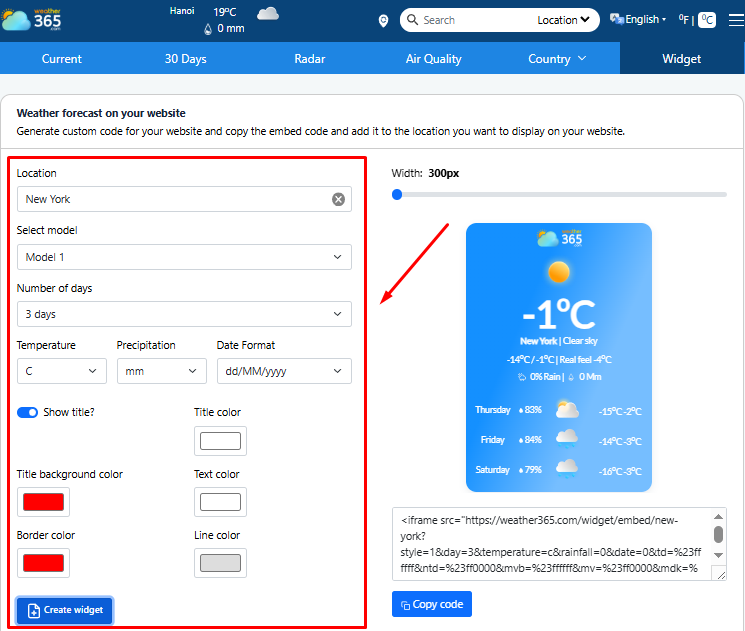
Customize everything with Weather365
Customize content
Content customization determines how much information users actually see. Most widgets allow you to modify displayed text, rename locations, or enable and disable specific data points.
You can typically choose whether to show:
-
Modify displayed text
-
Change location names manually
-
Enable or disable data points such as: wind speed, humidity, pressure, forecast length (hourly, multi-day).
This level of control is key when you want to customize a weather widget for your audience truly.
Generate and Embed
After completing all customizations, preview the widget to ensure everything displays correctly on different screen sizes.
Once satisfied, generate the embed code provided by the widget platform.
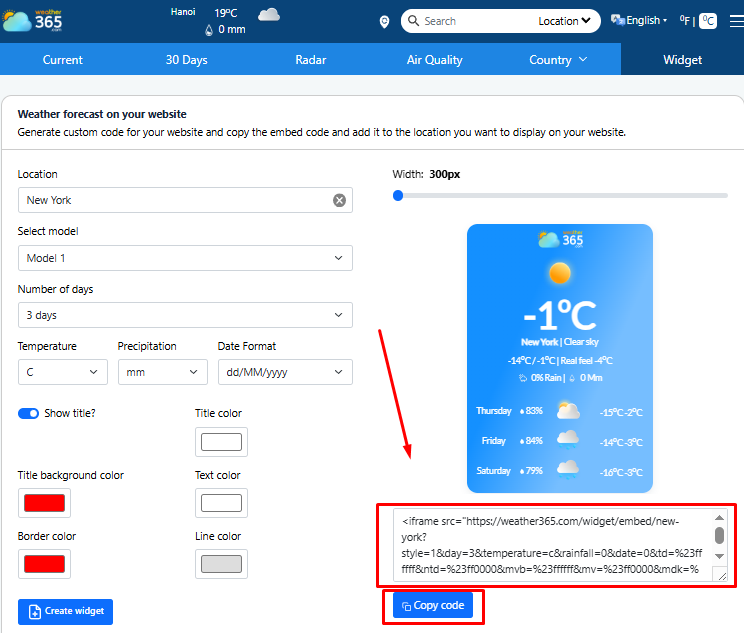
Generate the embed code and copy it
This usually comes in the form of an HTML or JavaScript snippet.
Simply copy the code and paste it into your website’s HTML editor or CMS block, such as WordPress, Ghost, or other site builders.
After publishing, double-check loading speed and responsiveness to confirm the widget integrates smoothly.
You may also like
-
HTML code for weather widget
-
WordPress weather widget
In most cases, the fastest way to add widget to website is to copy the HTML/JavaScript snippet and paste it into your CMS embed block (WordPress, Webflow, Ghost, or custom HTML)
Final Thought
Customizable weather widget tools help you display useful weather information while keeping your website clean and easy to use. With the right widget, you can adjust location, temperature units, size, and design to fit your site perfectly, improving user experience and encouraging visitors to stay longer.
FAQs
-
Are widgets adaptable for my website platform?
Yes. Most modern widgets are designed to work across popular platforms like WordPress, Webflow, Ghost, and custom HTML websites.
As long as your platform supports embedded code, you can integrate a customizable weather widget easily.
-
Are widgets responsive?
Most weather widgets today are responsive by default, meaning they automatically adjust to different screen sizes such as desktops, tablets, and mobile devices. This ensures consistent usability across all devices.
-
Do widgets use data?
Yes, widgets rely on data to function properly.
Weather widgets continuously fetch real-time information such as temperature, forecasts, and conditions from external servers to keep the displayed data accurate and up to date.
Weather app and widget — what’s the difference?
“A weather app and widget serve different use cases: apps are standalone experiences, while widgets display key weather data directly on a website so visitors get answers instantly without leaving the page.
![10 Health & Safety Precautions During Rainy Season [Be Careful]](https://admin.goweatherforecast.com/images/1732692097.png)



0 Comments
Leave a Comment
Your email address will not be published. Required fields are marked *